Render Fun tutorial series · Lesson 7 / 10
Render Fun Tutorial 7: Clean Renders, Quality Levels, the AI Denoiser and Resolution
A clean, sharp final picture is what clients see. This lesson explains where noise comes from and which settings take it away, without waiting longer than you need to.
Why a render starts noisy
Render Fun traces rays of light, one sample after another. Early on the picture shows fine grain, the noise, and every new sample makes it cleaner; the counter at the bottom shows how many are done.
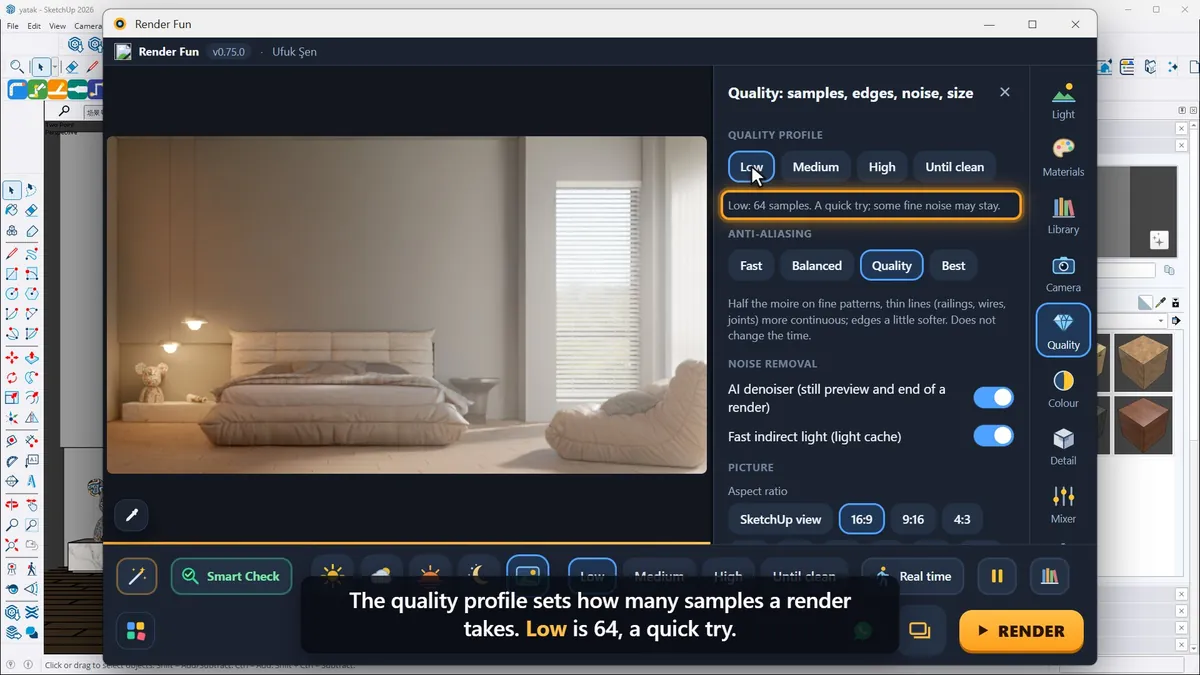
The quality profile
- Low: a quick try.
- Medium: enough for most work.
- High: for presentations.
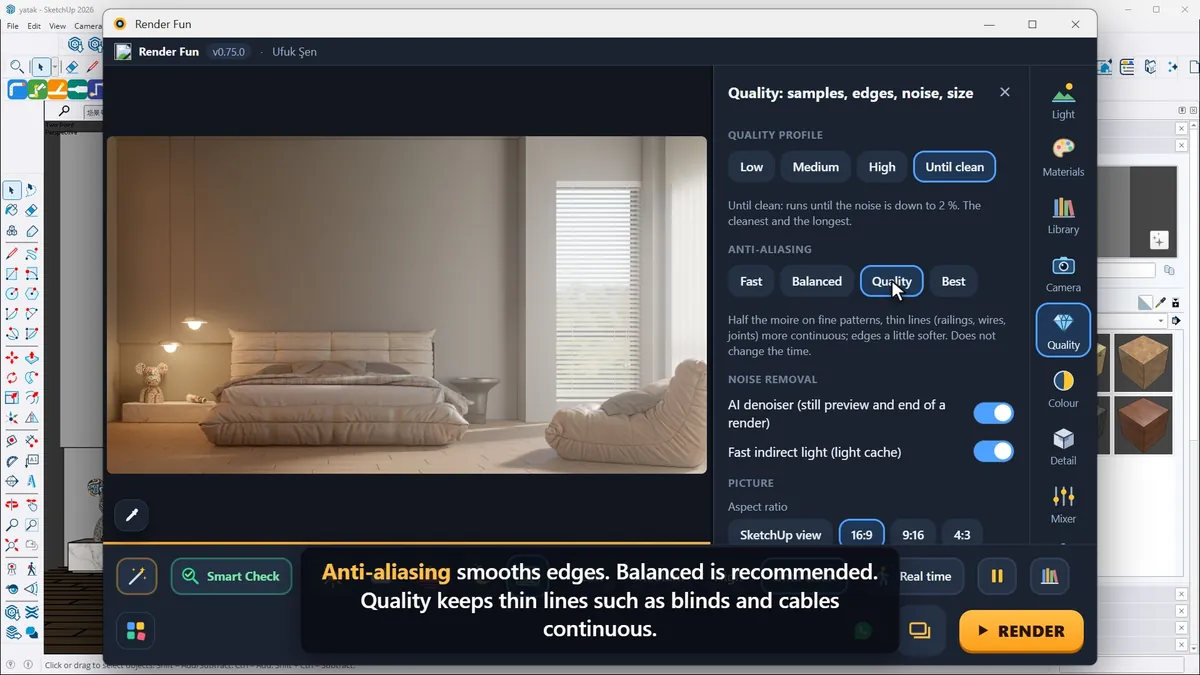
- Until clean: keeps going until the noise is down to 2 %; the cleanest and the slowest.
The AI denoiser cleans the last bit of noise at the end of a render and on the still preview. Fast indirect light makes interiors clear up much faster; keep it on.
Anti-aliasing and size
Anti-aliasing smooths edges: Balanced is recommended, Quality keeps thin lines such as blinds and cables continuous, and Best doubles the samples of the final render for the finest details. The Size buttons set the pixels of the saved picture: HD is 1920 pixels wide, 4K is 3840. A bigger picture takes longer, so test small and render large at the end.
Region render
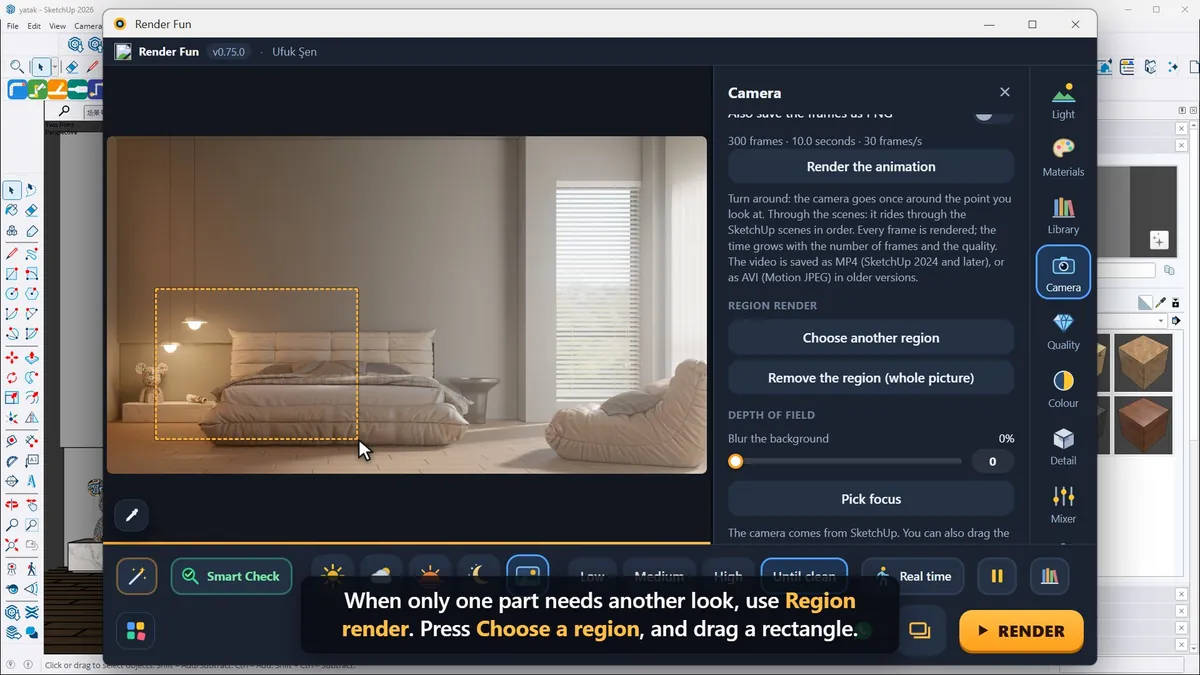
When only one part needs another look, press "Choose a region" and drag a rectangle: only that part is worked on again, and the rest of the picture stays as it is. Every render you save is also kept in the Render Buffer, under Extensions › Render Fun.
Next: Lesson 8, colour, detail and the final look.
Frequently asked questions
Which quality should I use for the final image?
High with the AI denoiser; Until clean when there must be no noise at all.
Can I re-render only part of the image?
Yes, with Region render: drag a rectangle and only that part is worked on again.
- 1. Install and first render
- 2. The interface: what is where
- 3. Camera and composition
- 4. Sun, sky and HDRI
- 5. Materials
- 6. Lights and the light mixer
- 7. Quality, noise and resolution
- 8. Colour, detail and final look
- 9. Plants, water and atmosphere
- 10. Final output and workflow