Rendering SketchUp on a Laptop Without an RTX Card: What Works
Many of us do not model on a workstation. The office machine is a few years old, the laptop goes to site, and the requirements page of a render engine asks for a ray-tracing graphics card. Does that mean no render? Not always. Here is what really matters, and we will be open about what we have and have not measured.
Why do render engines ask for an RTX card?
Ray-tracing cards have hardware made to speed up the very job a render engine does. Some engines require it outright; others run without it or render on the processor instead. So “no RTX” can mean “cannot run” in one engine and only “takes longer” in another. Read the requirements before you install.
What does Render Fun need?
A graphics card with WebGL2 support, on Windows, with SketchUp 2021–2026. No ray-tracing card is required. It runs a short speed test when it opens and chooses its quality level, and a compatibility mode helps cards that cannot run the full renderer. A faster card simply cleans the image sooner.
Honest note: our published measurements so far are on an NVIDIA RTX 4090. We have not measured integrated graphics yet, so we give no speed figures for them here. It is free, so the fastest test is to try it on your own model.
How to render on modest hardware
- Plug the laptop in. Laptops often slow the graphics card down on battery.
- Use the dedicated card if you have two. Set SketchUp to the high-performance card in Windows graphics settings.
- Close what uses the graphics card: browsers with many tabs, video and other 3D programs.
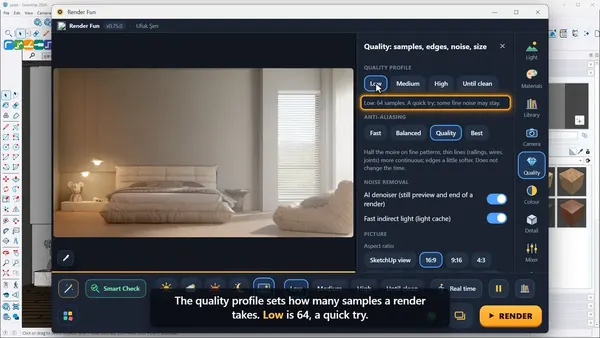
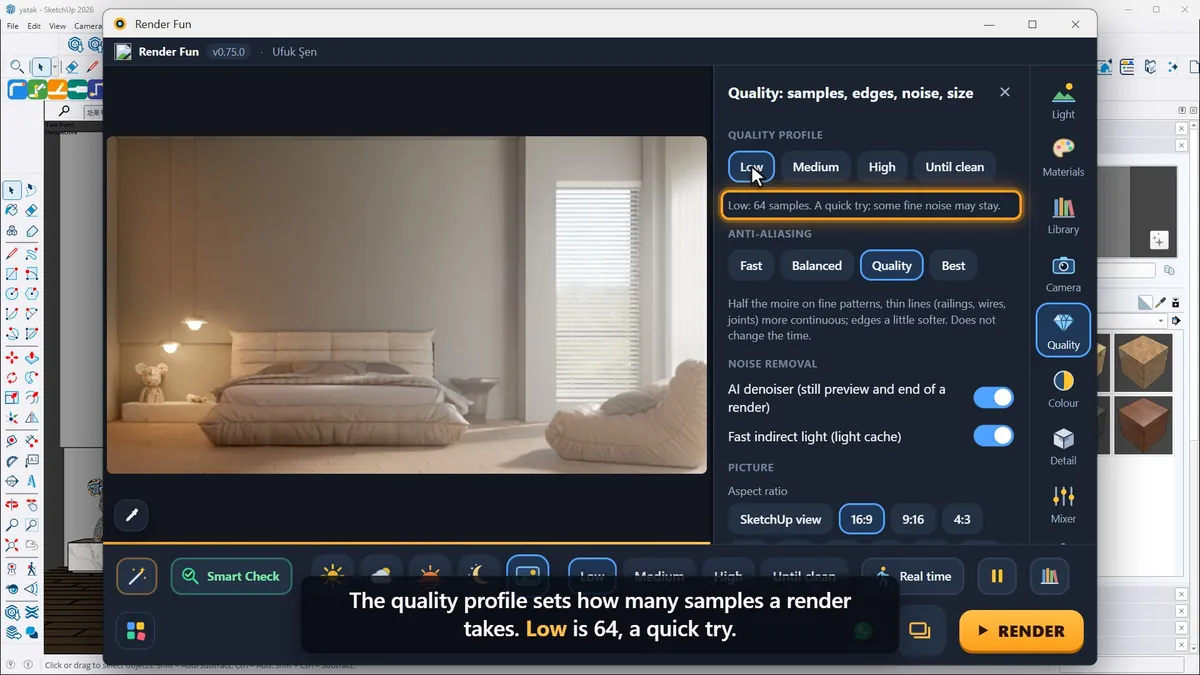
- Render smaller. Fewer pixels clear faster; an HD image is often enough for a screen presentation.
- Clean the model. Remove hidden objects and oversized textures; Smart Check lists them.
- Let the denoiser finish it. “Good enough, save” with the AI denoiser can be plenty for a working image.
- Prefer daylight. A sunlit scene clears sooner than a night interior lit by small lamps.
Is cloud rendering a better idea?
It can be, for a big final image on a weak machine, but it means uploading your project, paying per use and waiting for the connection. Many everyday images do not need it. Try locally first, and keep the cloud for what your computer really cannot finish.
The other settings that help are in Lesson 7: quality, noise and resolution.
Frequently asked questions
Can I render SketchUp without a dedicated graphics card?
Render Fun needs WebGL2 support and has a compatibility mode, but we have not measured integrated graphics yet, so try it on your own model.
Do I need an RTX card for Render Fun?
No. A graphics card with WebGL2 support is enough; a faster card cleans the picture sooner.
What is the best render size for a slow computer?
Test at a small size, then use HD for screen presentations. Choose larger sizes only when you need them for print.