The Best Render Engine for SketchUp: How to Choose the Right One in 2026
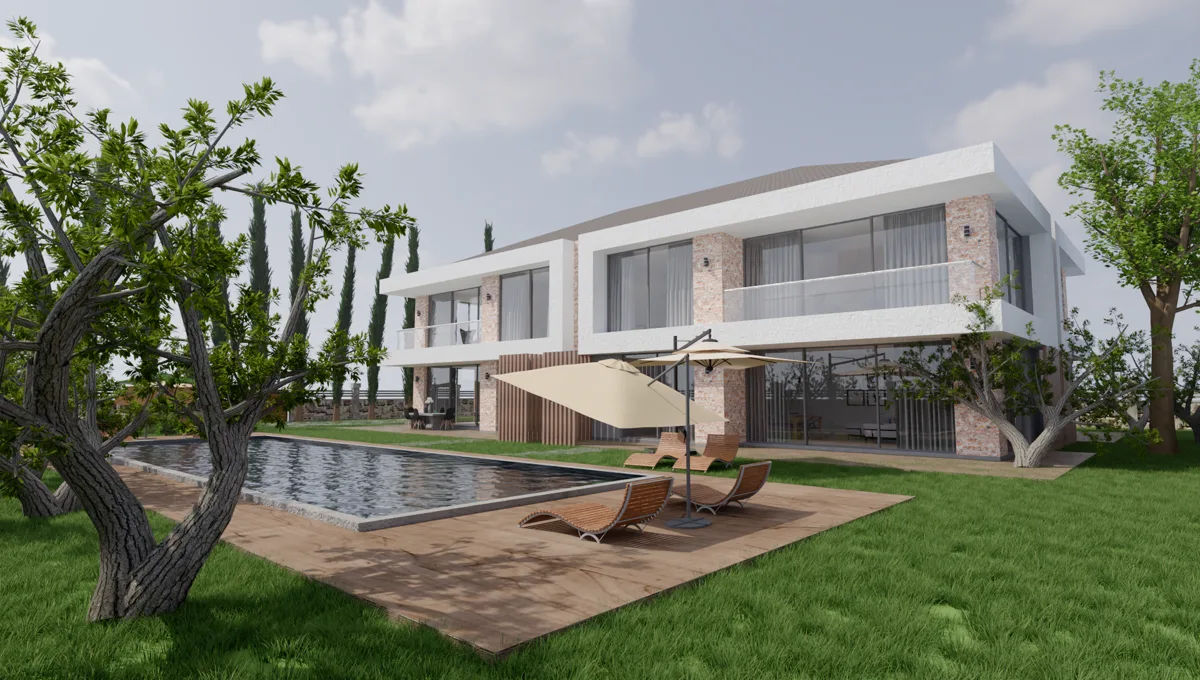
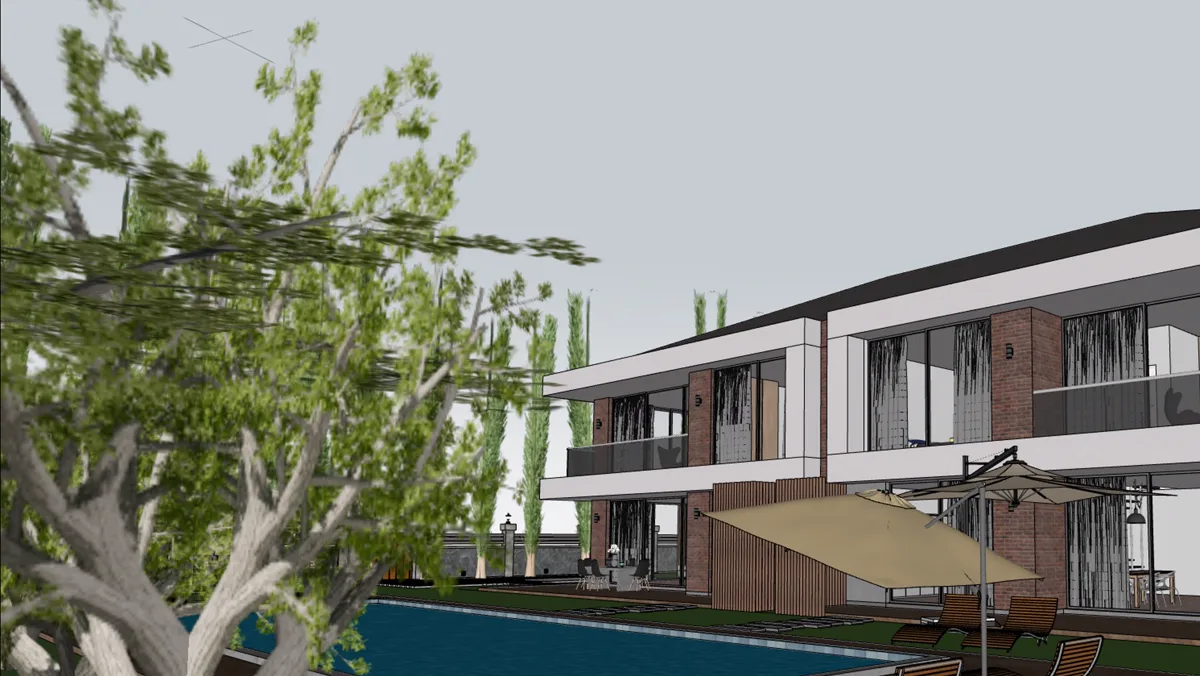
You spent days on the model; the client will judge it in seconds, by the image. Choosing a render engine for SketchUp is really choosing how those seconds go: a grey viewport and an apology, or a photo-real image that sells the design. This guide explains what actually separates the options in 2026 and where each one fits.
What makes a render engine the best for SketchUp?
There is no single winner for every office, but there are five questions that decide it. Answer them honestly and the list of candidates gets short.
- Inside SketchUp or a separate program? A plugin renders in the SketchUp window; a live-sync tool sends the model to another application where you set materials and cameras again.
- Real-time or path traced? Real-time shows a fast, game-like picture as you move; a path-traced or ray-traced render takes longer and gives more accurate light, reflections and soft shadows.
- What does it cost over a year? A subscription, a free tier with limits, or free with no limits.
- What does your computer have? Some engines need a ray-tracing graphics card, some run only on Windows, some only on Apple Silicon Macs.
- How fast can you learn it? The best engine is the one you actually use on a Thursday night before a Friday presentation.
The main SketchUp render engines in 2026
The facts below come from each vendor’s own product, requirements and licensing pages, checked in October 2026. Prices change often, so we name the licence model rather than a number.
- V-Ray for SketchUp (Chaos): a rendering plugin inside SketchUp for detailed, ray-traced stills. Paid subscription with a 30-day trial; Windows and macOS; SketchUp 2021–2026.
- Enscape (Chaos): real-time rendering started from inside SketchUp. Paid annual plans with a 14-day trial; Windows with a dedicated graphics card, or Apple Silicon Macs; SketchUp 2024–2026.
- Lumion with LiveSync: a separate Windows application kept in sync with SketchUp by a plugin, with real-time ray tracing. Subscription with a 14-day trial and a free licence for eligible students.
- D5 Render with LiveSync: a separate Windows application for real-time path-traced light. A free Community tier for non-commercial use, paid Pro and Teams plans; it needs a ray-tracing capable graphics card. D5 also offers D5 Lite, a free plugin inside SketchUp for NVIDIA RTX cards.
- Twinmotion (Epic Games): a separate application linked to SketchUp Pro through the Datasmith Direct Link, with real-time modes and an offline path tracer; Windows and macOS, and the path tracer is Windows only.
- Render Fun: GPU-based path tracing, inside SketchUp, free. No account, no licence key, for personal and commercial work; SketchUp 2021–2026 on Windows.
Official pages: V-Ray, Enscape, Lumion, D5 Render, Twinmotion. Check them before you buy; terms change.
Rendering inside SketchUp vs a separate application
A separate application is powerful for large scenes, animation and vegetation, but every material, light and camera lives in a second file. When the model changes late, you change it twice. A plugin inside SketchUp keeps one model: your materials, scenes, tags and sun settings are the render settings. For most architects and interior designers who iterate up to the last day, that single source of truth saves more time than any one feature.
Real-time rendering vs path tracing: which do you need?
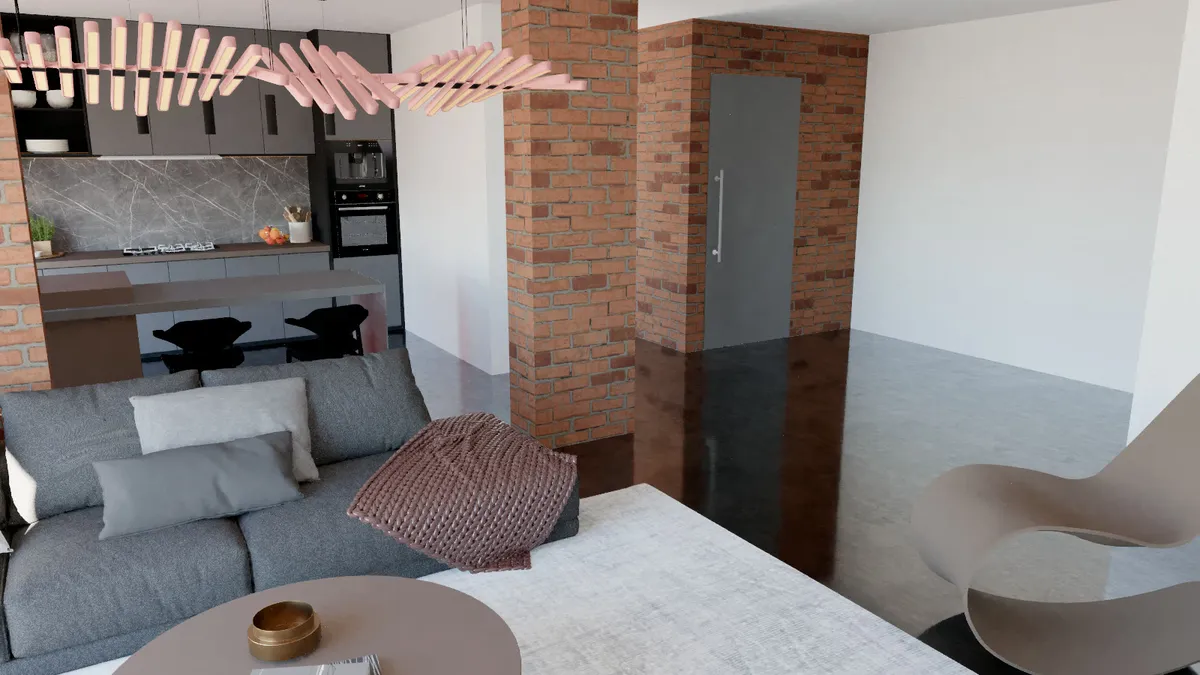
Real-time is ideal for walking through a design and finding the view. Path tracing is what you want for the image you send: light that bounces the way it does in a real room, glass and water that refract, shadows that soften with distance. Render Fun gives you both in one window: walk with W A S D in real time to find the camera, then press RENDER for the path-traced picture, cleaned by the AI denoiser.
Free vs subscription render engines
A subscription makes sense when a feature you need every day is only in that product. Many offices, students and freelancers pay for a licence they use a few times a month. A free engine with no limits on commercial work changes that maths, and it lets every computer in the office render. We compare the free options in the best free render engine for SketchUp.
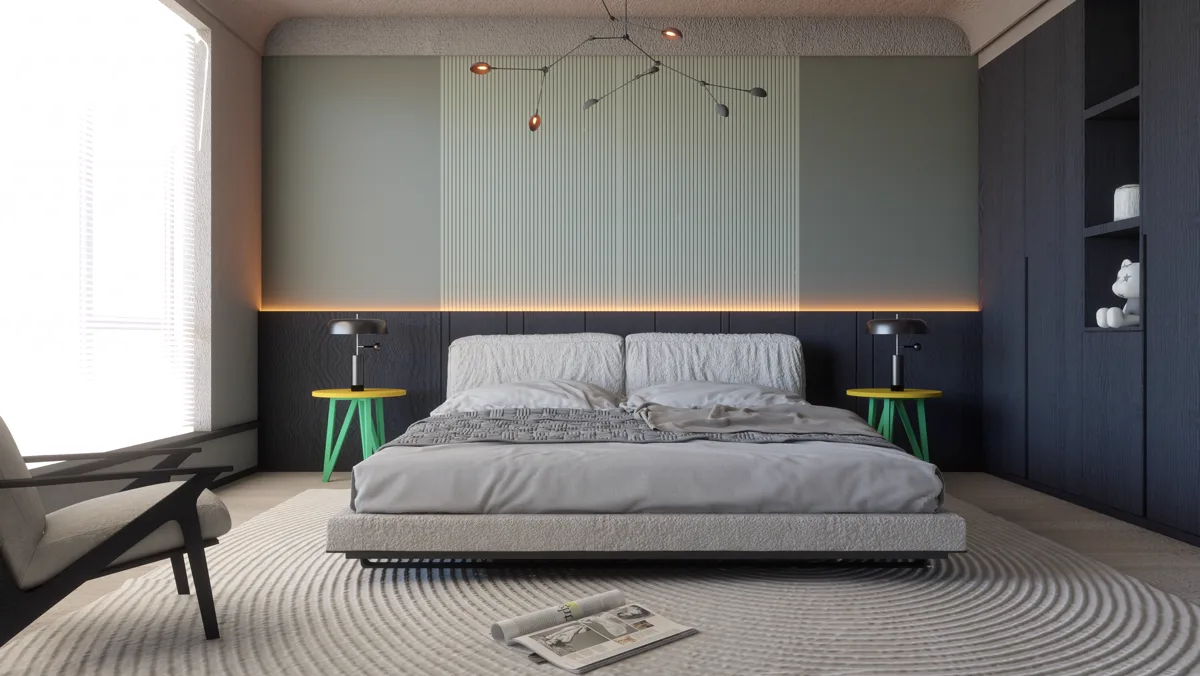
Where Render Fun fits
- Inside SketchUp: no export, no second program; it reads your materials, scenes and SketchUp shadow settings.
- Ready in one press: four scene presets, interior day, interior night, exterior day and exterior sunset, set the light, colour and detail.
- Real light: sun and sky, 10 built-in HDRI environments or your own file, point, spot and panel lamps with IES profiles.
- Clean images: the AI denoiser on Windows, and an "Until clean" quality that runs until the noise is gone.
- Share the result: 360° panoramas, an HTML panorama tour, animation, and Before / After pages and videos.
- Free: for personal and commercial work, without an account or a licence key, and it works offline.
Its limits are worth saying too: Render Fun runs on Windows today (macOS has not been tested yet) and needs a graphics card with WebGL2 support; it sets its quality to your card by itself. Start with the best Render Fun settings, and if you design buildings, read Render Fun features for architects.
Frequently asked questions
Which render engine is best for SketchUp beginners?
One that works inside SketchUp and gives a good image with presets, so you learn light before settings. Render Fun’s four scene presets and quality buttons are made for that.
Is there a free render engine for SketchUp for commercial work?
Yes. Render Fun is free for personal and commercial work, with no account and no licence key.
Do I need an RTX graphics card to render in SketchUp?
It depends on the engine: several need a ray-tracing capable card. Render Fun needs a graphics card with WebGL2 support and adapts its quality to the card.
Does Render Fun work on Mac?
Not yet officially: it runs on Windows, and macOS has not been tested.